
Suffered From The Microsoft Outage? Here’s How to Make Sure the Next Outage Doesn’t Stop Your Business
On Thursday 12 November 2026, Microsoft had one of its biggest outages in years. Outlook, Teams and Copilot went down for millions of people across more than 70 countries, and for a lot of UK businesses it rolled straight into Friday morning. Microsoft put it down to “elevated load” on its infrastructure.
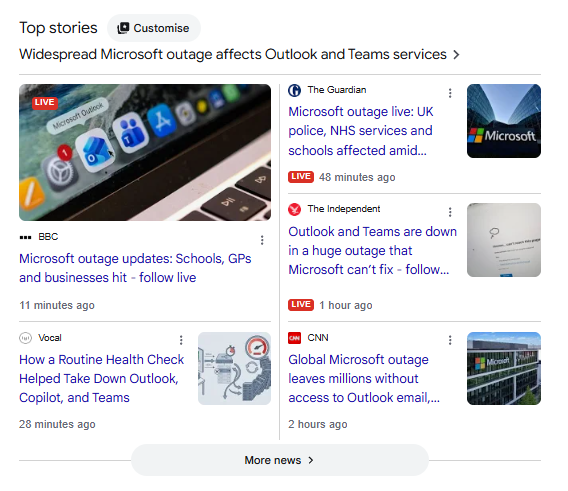
I had clients messaging me in a panic. One summed it up in three words I won’t repeat here.
Meanwhile, my own email carried on as normal. Not because I’m clever, but because of how my email happens to be set up. So this post is for anyone who got caught out: what actually happened, why some people were fine and others weren’t, and the cheap, boring things you can do now so the next outage is an inconvenience rather than a crisis.
And there will be a next one. Microsoft 365 has had several major outages in 2026 alone.
First, the bit most people don’t realise: Outlook isn’t your email
Outlook is two things that share a name:
- The app you open to read your email (on your laptop, phone or browser)
- Microsoft’s email hosting (Microsoft 365 / Exchange Online), where your mailbox physically lives
Lots of businesses use the Outlook app to read email that is hosted somewhere else entirely: their web host (Fasthosts, 123 Reg, IONOS and so on), or Google. That’s my setup. Outlook pulls in my Gmail and my business email from my host. When Microsoft went down, I just logged into Gmail and my host’s webmail and carried on.
If your mailbox is hosted by Microsoft, though, the problem is the mailbox itself. Switching to a different app won’t help, because there’s nothing for any app to connect to until Microsoft fixes it.
So the first job is finding out which camp you’re in.
How to check where your email actually lives (2 minutes)
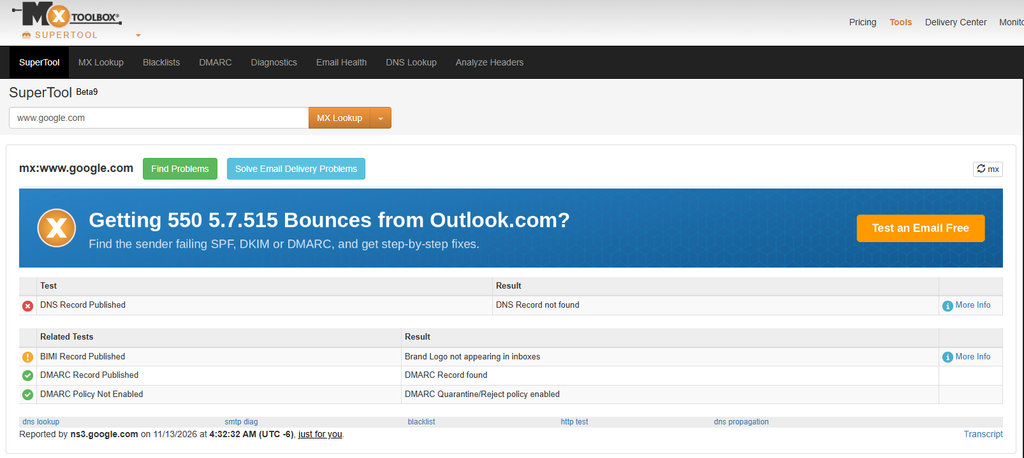
- Go to a free MX lookup tool such as MXToolbox
- Type in your domain (the bit after the @ in your email address)
- Look at the result:
- Contains “mail.protection.outlook.com” → your email is hosted by Microsoft 365
- Contains “google.com” or “googlemail.com” → hosted by Google Workspace
- Contains your web host’s name (e.g. Fasthosts, IONOS) → hosted by your web host, and Outlook is probably just the app you read it in
Write the answer down. It decides everything below.
If Outlook Is Just Your App: Set Up A Backup Route Today
You’re in the lucky camp. You just need a second way in that doesn’t touch Microsoft.
- Bookmark your host’s webmail. Every host has one. Find the link, check your password works, save it somewhere you’ll find it under pressure (not in an email).
- Add your email to a second app. Your phone’s built-in Mail app, Gmail’s app or Thunderbird (free) can all connect to the same mailbox using IMAP. Set it up once and leave it there.
- Store your email settings somewhere safe. Incoming and outgoing server names, ports and password, in your password manager.
Ten minutes of setup, and an Outlook outage becomes a non-event.
If You’re On Microsoft 365: Plan For The Mailbox Being Unavailable
You can’t route around a Microsoft-hosted mailbox being down. What you can do is reduce the damage.
- Don’t panic about lost emails. When a mail server is unavailable, the sending server normally keeps retrying for a period, often a couple of days. In most outages, emails arrive late rather than disappearing. Tell your team and key contacts that before they start resending everything.
- Keep an offline copy. The desktop Outlook app can keep a cached copy of your mailbox on your computer (it’s usually on by default). During an outage you can often still search and read older emails, even if nothing new comes in or goes out. Check it’s switched on.
- Have a backup address ready. A free Gmail account, or a second domain on a different provider, that your team knows to use for urgent messages. Set it up now, not mid-outage.
- Agree a backup chat channel. If Teams goes down, where does everyone go? A WhatsApp group, Slack or Google Chat. Decide in advance so nobody has to organise it while everything is on fire.
- Save a backup meeting link. A Zoom or Google Meet link pinned somewhere obvious for when Teams calls won’t connect.
- Sync your key files offline. If your documents live in OneDrive or SharePoint, set the important folders to “always keep on this device”.
- Check your login codes. If two-factor codes or password resets for important accounts (banking, your website, your ad accounts) go to your Microsoft mailbox, you can get locked out exactly when you need access. Use an authenticator app or SMS as well.
For Ecommerce Businesses Specifically
This is the bit I’ve been helping clients with, and the good news is that your shop probably kept trading.
- Shopify order emails still go out. Order confirmations and shipping notifications are sent by Shopify’s own systems, not your mailbox, so customers keep getting them. The problem is replies and customer service emails coming back to you.
- Move customer service to other channels for the day. A short banner on your site (“Our email is affected by the Microsoft outage, please use live chat or message us on Instagram”) stops customers thinking you’ve vanished.
- Check what else plugs into your mailbox. Helpdesk tools, supplier order forms, marketplace notifications and contact forms that deliver to a Microsoft inbox will all stall. Know which ones they are.
- Have a supplier and courier contact list outside email. Phone numbers and WhatsApp contacts for the people you’d need to reach urgently.
The Bigger Point: Don’t Rely On One Company For Everything
The UK government has been encouraging households and businesses to think about resilience: power cuts, cyber attacks and disruption to the services we all take for granted. The same thinking applies to your business tools.
The businesses that coped best this week weren’t the ones with the biggest IT budgets. They were the ones that had a second option ready: a second way into their email, a second place to talk, and a rough idea of what to do if the main system disappeared for a day.
None of this needs a big project. It needs an hour.
Your One-Hour Outage Plan
- Check where your email is hosted (MX lookup)
- Bookmark your webmail and test the login, or set up a backup Gmail address if you’re on Microsoft 365
- Add your mailbox to a second app if your email isn’t Microsoft-hosted
- Agree a backup chat channel and meeting link with your team
- Set key OneDrive/SharePoint folders to sync offline
- Move important two-factor codes off your Microsoft mailbox
- Write a two-line site banner and save it, ready to switch on
- Put all of the above on one page and share it with your team
FAQ
Is Microsoft still down?
Check Microsoft’s official service status page and its Microsoft 365 Status account on X for live updates. If you have admin access, the Service Health section of the Microsoft 365 admin centre shows what’s affecting your account.
Can I access my Outlook email another way during an outage?
Only if your mailbox is hosted somewhere other than Microsoft. If it’s with your web host or Google, use their webmail or another email app. If it’s hosted by Microsoft 365, no app will reach it until service is restored.
Will I lose emails sent to me during the Microsoft outage?
Usually not. Sending servers normally queue and retry for a period, so most emails arrive once service comes back, just late. If something is time-critical, ask the sender to confirm by phone.
Will Thunderbird work when Outlook is down?
Thunderbird is just another email app. It will work if your mailbox is hosted outside Microsoft, but not if your email is hosted by Microsoft 365, because the mailbox itself is unavailable.
Did my Shopify store stop sending order emails?
No. Shopify sends order and shipping notifications from its own servers, so customers keep receiving them. Replies to your inbox may be delayed if your inbox is Microsoft-hosted.
Want a second pair of eyes on how resilient your ecommerce setup really is? Get in touch and I’ll take a look.