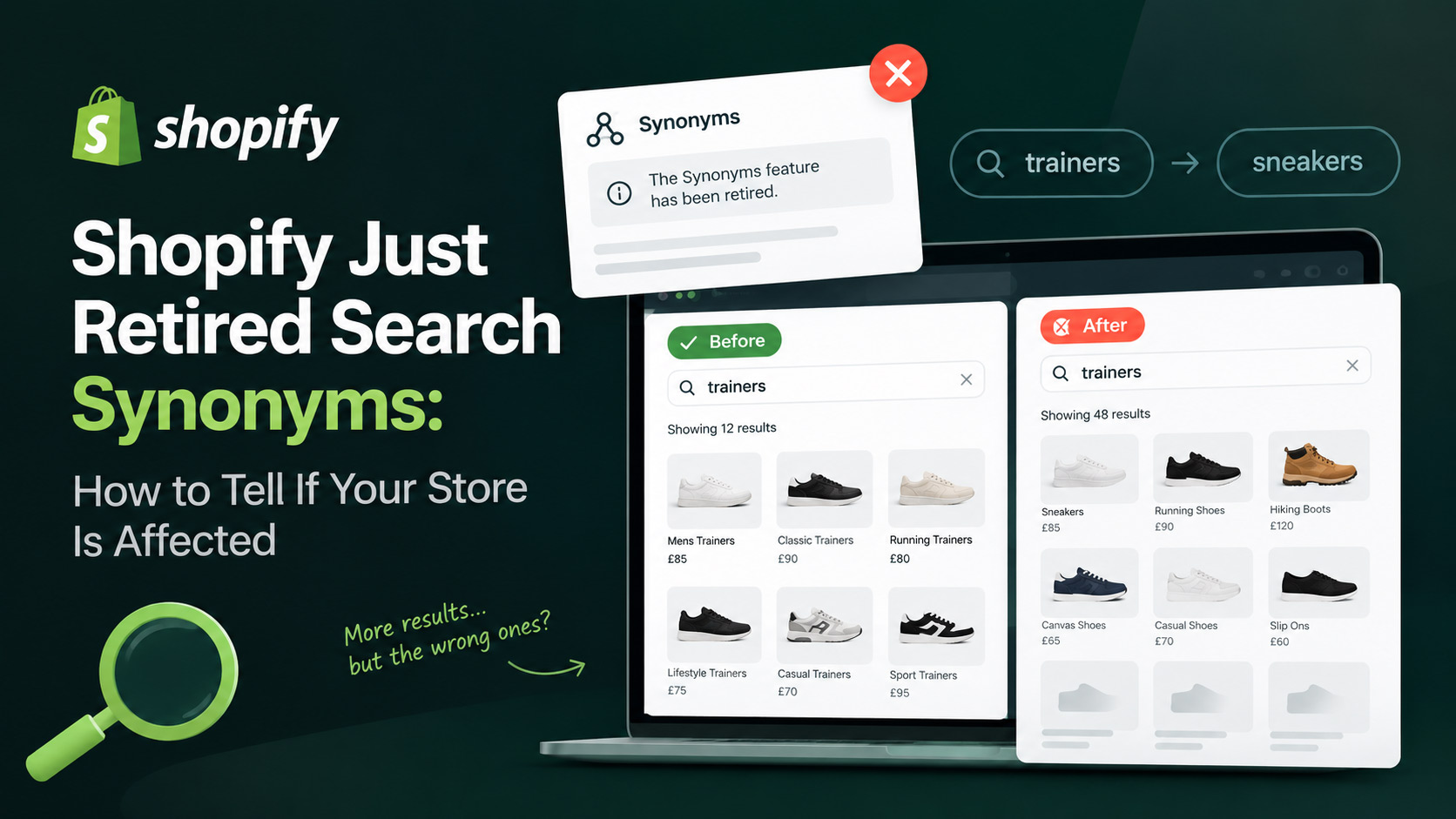
Shopify has retired their Search Synonyms feature in its free Search & Discovery app. If you have ever built synonym groups so that a search for “trainers” also presents results for products that might have been called “sneakers”, those rules no longer apply in the way that you set them up. I’ve always been a big advocate for setting up search synonyms and always ensure my clients make the most of them. I’ve often wrote about their benefits in posts such as “How to Optimise On-Site Search For Ecommerce“.
Shopify is now leaning on its own semantic search to decide what products to show for search terms. For a lot of stores, this change will go through quietly without you even realising. However for some others, search has started to show a lot more results than it should, with the ones that the customer wanted actually buried within those search results.
This post is aimed to tell you what has changed, how to check if your store is affected very quickly, and what your options are.
What Has Shopify Actually Changed?
Inside the Shopify Search & Discovery app, the Synonyms section now shows a message saying that the feature is retired. You can’t manage your existing synonyms, or create any new ones. Merchants have began to complain about this in the last couple of weeks, with the timeline looking like it was somewhere in mid-September.
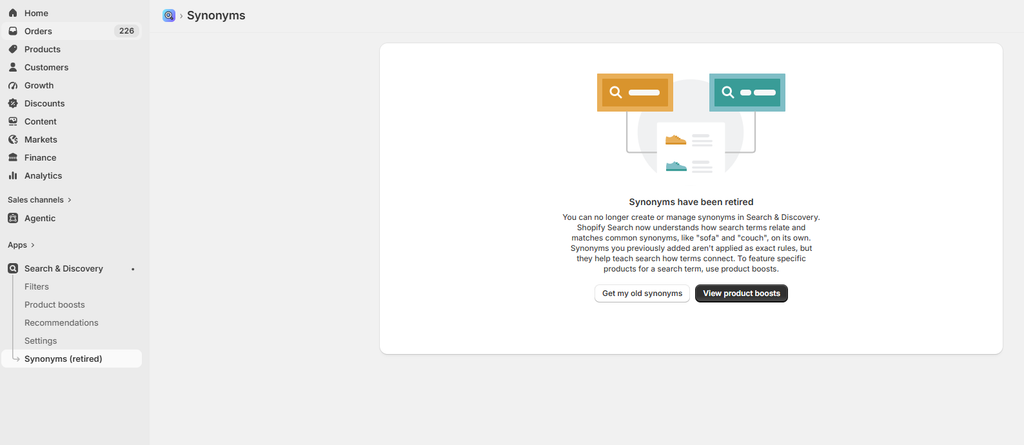
The wording that Shopify have used suggests that its own search now understands how search terms relate to one another and that it matches common synonyms, like “couch” and “sofa”. Any synonyms you previous added are not added, although Shopify does say that they help teach its search terms on how to connect.
However some merchants have been complaining on Shopify forums, that their search results are far too loose now. Rather than showing minmal results, they’re actually showing far too many.
Why Has Shopify Removed Search Synonyms?
It seems to be the next evolution of their search overhaul. In March 2025, Shopify decided to make its semantic search a default setting for merchants using their Search & Discovery app which they couldn’t turn off. Semantic search in itself, tries to understand the intent behind queries instead of matching exact words. This is why they argue synonyms are no longer needed.
It all sounds great, but in practice, the quality of the automatic match fluctuates. By taking away the manual override option, customers were already left with no way to correct it, unless they looked for a different app solution.
Is Your Store Affected? How To Check In Less Than 5 Minutes
Don’t assume that your search is broken if you do use Search & Discovery. You actually need to check your site as a customer would. There’s plenty of stores that are fine, so you need to know where you stand. Here’s how you can check.
- Open your Shopify admin panel
- Go to Analytics
- Click on Reports
- Open up Top Online Store Searches. This will give you the real search terms that customers are searching on your site.
Take that list of terms, and run them through your site search bar like a customer. Add a few extra that you think might be useful. Be aware that in the past, failure sometimes meant that no search results at all would appear. The latest problem is sometimes that inaccurate results are appearing.
If your results still look good, you are fine and I’d just suggest keeping an eye on it moving forward. However if you are seeing messy results pages, where the obvious target products are pushed further down your search results, you have a problem and it’s a good time to look at your options.
For more information on getting your on-site search right, see my guide on how to optimise on-site search for ecommerce.
What To Do If Your Search Is Messy
If your search results page has gone backwards, a dedicated search app gives you back the manual control that Search & Discovery has taken away. They often also add in an improved tool-set that default Search & Discovery didn’t have. Things worthwhile looking for in a new app:
- Synonym and redirect control that you can manage yourself, rather than relying on Shopify
- Typo tolerance which handles misspellings
- Merchandising rules, so you can decide which products surface for your key search terms
- Filtering and performance that can be customised as your catalogue grows in size
Shopify Search Apps Worthwhile Considering
Below is 3 apps that I’ve used before that I would say are genuinely worth considering if you do look to upgrade from Search & Discovery.
(Disclaimer: Some of the links below are affiliate links. If you sign up through them I may earn a commission at no extra cost to you. I only recommend tools I have used and rate.)
Caution before you install any of these: take a full backup of your theme first. Search apps inject code into your theme and can break layouts if anything goes wrong. A backup always saves you the headache of fixing a broken site. Alternatively reach out to a specialist who can install it for you.
Searchanise:
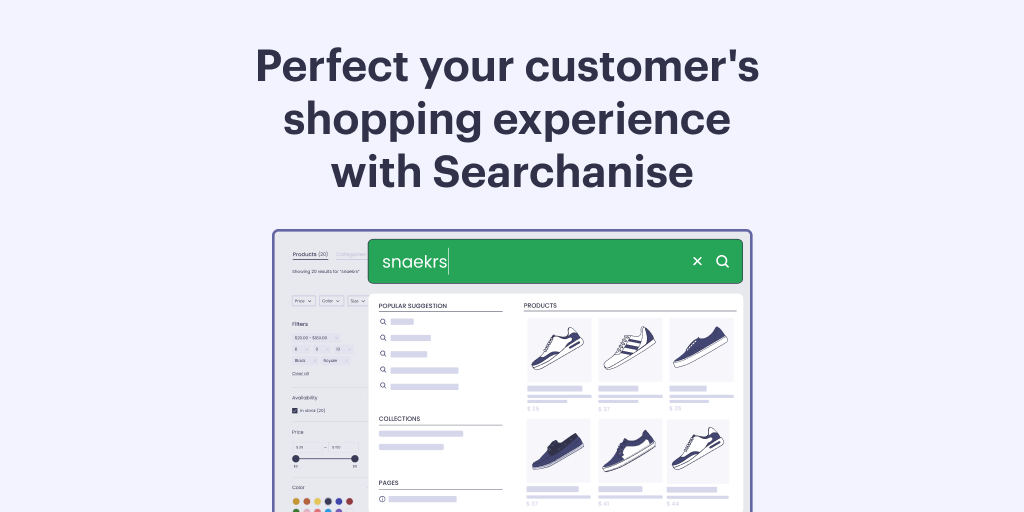
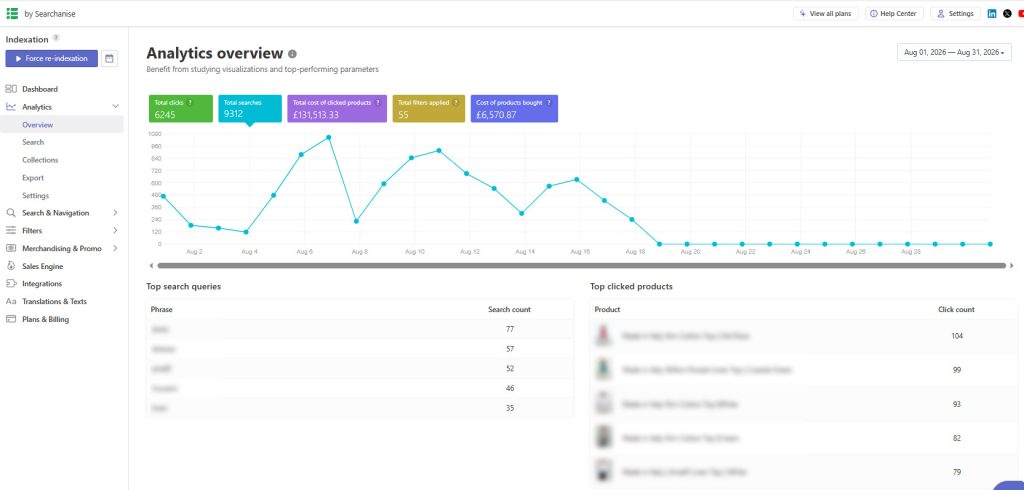
Searchanise is a strong starting point and an app I’ve installed for a couple of clients when they wanted to upgrade at a relatively small ongoing cost. It’s pretty straightforward to set up and can handle both search and filters, although we’re specifically focused on search here. On search you get control over synonyms, stop words, suggestions dictionary and customisation of both the search results widget and instant search dropdown. It’s a much better option than native Shopify search and the pricing is decent with tiered plans to match the size of your store. The one drawback is related to filters on the collection pages, where it can make them slower to load in. If you’re primarily using it for search only though, it will be fine.
Try Searchanise free for 14 days
Boost AI
Boost sits at the premium end and costs noticeably more, but it does earn that price if you need the extra control that it offers. It again covers both search and filters, and from what I have set up, it handles search redirects, synonyms and customisation of your search layout. Where it does pull ahead of Searchanise is on the collection page filtering, which is genuinely a much smoother experience. If filtering matters to you as much as search, this is one to take a closer look at.
Try Boost AI for free for 21 days
Rapid Search
Rapid Search is a good search tool, although I have only used it for search rather than filtering, so I cannot speak of that side. It gives you synonym options and does the core job pretty well. The one thing to be aware of is that you cannot set up search redirects within the app yourself. Thier support team will happily put them in place, which works fine but it is worth knowing before you set up with them.
Use Rapid Stock for free if you have less than 2,000 sessions a month
In short, start with Searchanise if you want control and value, or set up Boost AI if collection and filtering matters as much as search. Look at Rapid Search if you’re happy that you just need search improvements and you are happy to lean on support when needed.